Posts

SmartMates in Solidworks

Image
In Solidworks, you can simplify the interfacing of components. Press and hold "Alt" to move the mouse pointer to the desired surface, press the left mouse button and drag to the second surface for the auto-conjugation. A pane will appear with the default interface already selected for these surfaces. Those. if the surface is flat, then the automatic interface is a coincidence, if the surface is cylindrical, then the automatic interface is concentric. There are other options for automatic pairing (SmartMates Procedures) Desired Mate Action What to Do Mate two components already in the assembly. Press Alt and drag one component onto another. Mate a new component while adding it to the assembly. Drag a part from another window onto another part in the assembly. From a part file: Select an entity and drag. From an assembly file: Hold down Shift, then select an entity and drag. Fully mate a commonly-used component while inserting it in the assembly. Dra...

Quick add special symbols to Solidworks

Image
When filling in these requirements, it is often necessary to insert symbols such as diameter (⌀), plus–minus (±), degree (°), and others. Using the Symbol Table to add them is not a fast process. In design work, it is desirable to optimize routine tasks — including drawing preparation. For example, to insert a symbol from the Symbol Table, you have to go through three menus and then select the required one from a large number of fonts. Although the Symbol Table provides a wide variety of options, a designer doesn’t need all of them for technical drawings — only a small set of special symbols is typically required.   Adding special symbols The Symbol Library The Symbol Table When applying dimensions, the diameter (⌀) and degree (°) symbols can be inserted quickly. Adding a diameter However, this method does not work as easily in notes. You have to make quite a large number of mouse clicks before reaching the required symbol. Fortunately, there is a way to quickly insert special char...

Macro for creating a spring

Image
The spring is one of the standard products, which is often used, but it is desirable to automate the simulation. Fortunately, there are enthusiasts who undertake this work. Macro for creating springs of tension and compression "SpringSW" - author of Shvg. To use the macro, you must add it to add-ins. To do this, open "SpringSW.dll", then "Spring" will appear in the "Tools" menu. Use the look at the video. For the coupling of the spring into the part, there is an axis "Axis1". The build tree is hidden, but it's even better. The spring has several configurations in different states: compressed, working, etc. The macro allows you to build compression springs and also to edit the data. Easy and convenient to use. Administrator rights are required to install and use the macro. You can change the shortcut to start Download macro с SpringSW Original post

Localized interface in Solidworks

Image
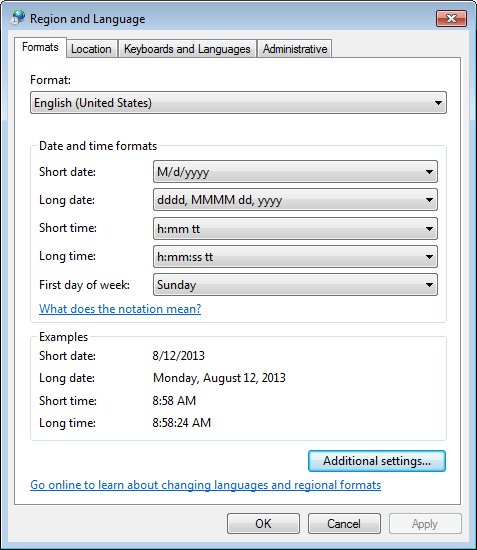
Often, after the installation of the localized version of Solidworks user instead of Russian or Chinese, Polish (depending on the native language) interface sees the English interface. What to do?  Step 1. For the beginning it is necessary to check whether the set your locale ( locale ) in Windows. Region and Language Settings If not installed, install and run the solid. Did not help? Step 2. As a rule, it is sufficient in the settings Solidworks uncheck "Use English Language menus" (use the English menu) and restart Solidworks, so there was a Russian interface. Uncheck, so it was like on the screenshot below, click "OK" and restart Solidworks. Did not help? There is a way that will show who's boss :). Step 3. It is necessary to rename the folder with the Russian on the English language resources, and English to Russian (in fact the latter, at the discretion on any name). Folders with resources are default: versions prior to SolidWorks 2009 "C:\Program File...

Crashing Solidworks and the threshold of system resources

Image
I think everyone who modeled in Solidworks came across an unexpected program closure. Bouncing solid quite often, but as a rule, when complex models are opened and closed intensively or when they are saved, which is especially unpleasant. Do not all fall for the curvature of developers, they are trying to create a quality product. The reason for the unexpected collapse of Solidworks is the limitation of Windows that the process can only access 10,000 GDI objects. What is GDI? GDI objects are used to draw window elements that are not in the graphics area in SolidWorks. For maximum performance, the graphics area uses OpenGL, which gives more direct access to the equipment for video processing. GDI objects are used for the chrome graphic area, so every time a new document is opened, the number of GDI objects used by SOLIDWORKS will increase. Prior to this, SOLIDWORKS 2011 SP4, if the part was opened in the assembly and its own window, when this window was closed, it would not free these G...

CONTACTS ELECTRIC PAIR (CISA)

Image
Rendering with PhotoView 360 Rendering with Realview  Download 3D model Link

Slow Performance Solidworks

Image
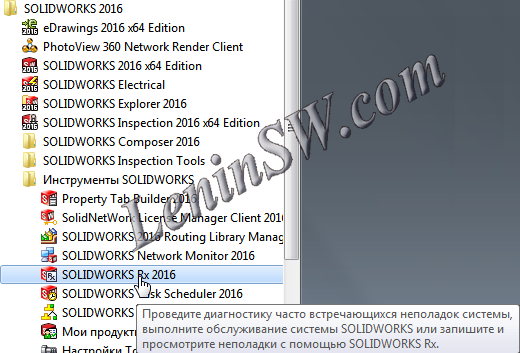
Why is Solidworks slow? Reducing the performance of Solidworks is a very unpleasant situation. And to find the cause is not easy.  Possible reasons: Errors drivers or video cards; Errors of settings or add-ins; Wrong  shortcut to launch; The errors on the disk; Fragmentation of the disk; Data errors in the registry; Power Options; External links. A great help in this is provided by Solidworks Rx . Launch the Solidworks Rx At the bottom of the diagnostic page, there are two safe modes. The choice of the first ignores the video card driver and runs SolidWorks in OpenGL mode for the next SolidWorks session. This can help to eliminate the problem with the video card. If this safe mode resolves the problem, it becomes clear that your problem is related to your card and you need to get a new driver or replace the old video card. Command line of this mode: "C:\Program Files\SOLIDWORKS Corp\SOLIDWORKS\sldworks.exe" /ForceSoftwareOGL /SWDisableExitApp Another safe mode is "Ignore...